Shared Mailbox Office Outlook
There are 2 ways to open a shared mailbox in Microsoft 365 Outlook on the web. Note you must have explicit delegated access by your email administrator to view another mailbox.
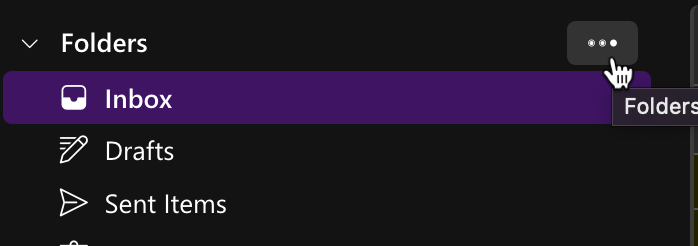
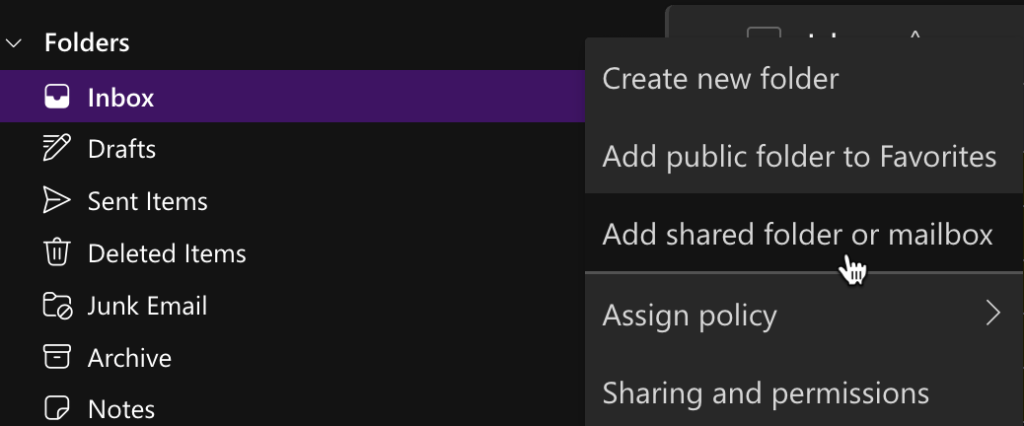
The first method is to add it to the list of folders down the left side. To do this click the 3 dots next to the top word “Folders” just above your Inbox. Select Add Shared Folder or Mailbox. You will be prompted for the email address you have been delegated access to use. The additional inbox will appear further down on the left side of your folder list. You may need to scroll the left side. Adding the address will only need to be done once and will persist every time you open Outlook on the web. Selecting the 3 dots next to the shared mailbox and clicking Remove Shared Folder will remove it from your view.
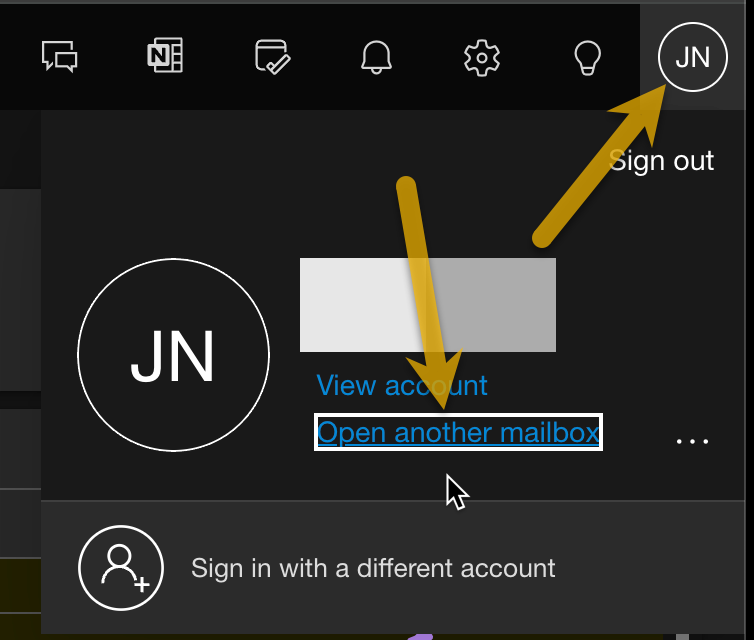
The second method is to open the shared mailbox in a new tab. Click on the circle in the upper right with your initials. Then select Open Another Mailbox. You will be prompted for the email address you have been delegated access to use. A new tab will open with that mailbox if you have access to it. This method is ideal for creating a bookmark in your browser directly to this mailbox. It also allows you to access the Settings (gear icon) for modifying rules and other settings related to the shared mailbox.