Enable Microsoft MFA/2FA App
Download the Microsoft Authenticator App from your app store using these links IOS / Android (Google Play Store) or the QR codes below. Using a Work or Personal phone is fine. When you change or upgrade phones every few years, the app will get installed, but the authentication will be invalid as the phone serial number will have changed. Thus it will not transfer automatically. Contact us with a ticket to have your MFA reset for the new phone and then follow the procedure below again to re-add.


Download APP for
Apple iPhone / iPad

Download APP for
Android (Google Play Store)
Setup / Verify
To enable or check your MFA status, visit https://mysignins.microsoft.com/security-info and verify you have Microsoft Authenticator in the list. (Alternately, login to office.com. Click your initials in the upper right. Select View Account. Once in the My Account page, select Security Info.)
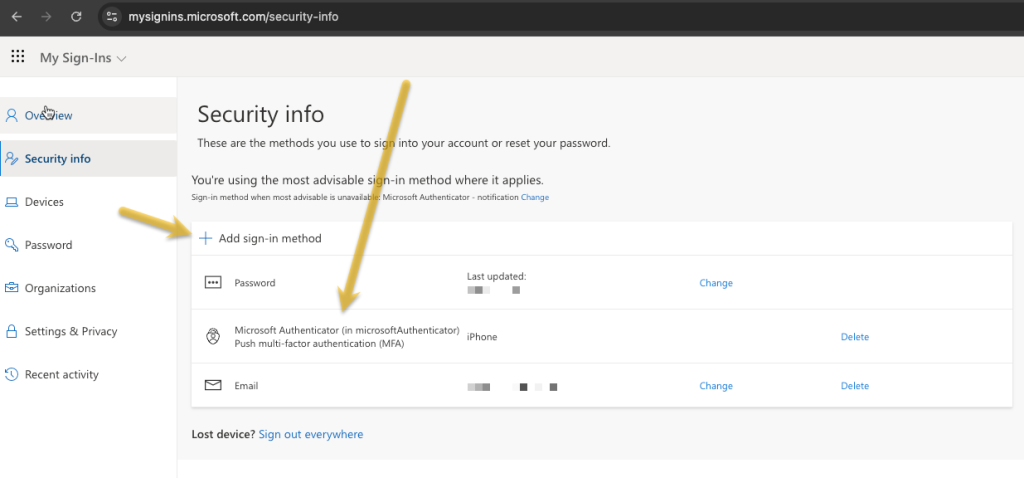
If you already see the Microsoft Authenticator in the list like the image below, then you are done. If you don’t see it, proceed to the Setup section below.
Setup Microsoft Authenticator
To setup Microsoft Authenticator, start on you PC with the https://mysignins.microsoft.com/security-info Website, click “+ Add sign-in Method“. Select “Authenticator App“. Follow the instructions until you see the QR code displayed.
Then over on your phone, Open the Authenticator App as instructed, touch the “+” in the upper right corner, touch “Work or school account“, touch “Scan QR code“. Scan the QR code with your Phone’s camera.
Back on your PC, Click Next. You should be prompted on your phone to enter the code displayed on your Phone. Then after a moment the code will disappear from your PC and you are done.
Watch the videos below for a walk through of the process.
More Information
Microsoft has details of this process on their site here.
This video shows how to set up Authenticator once it is mandatory and setup is forced on next login.